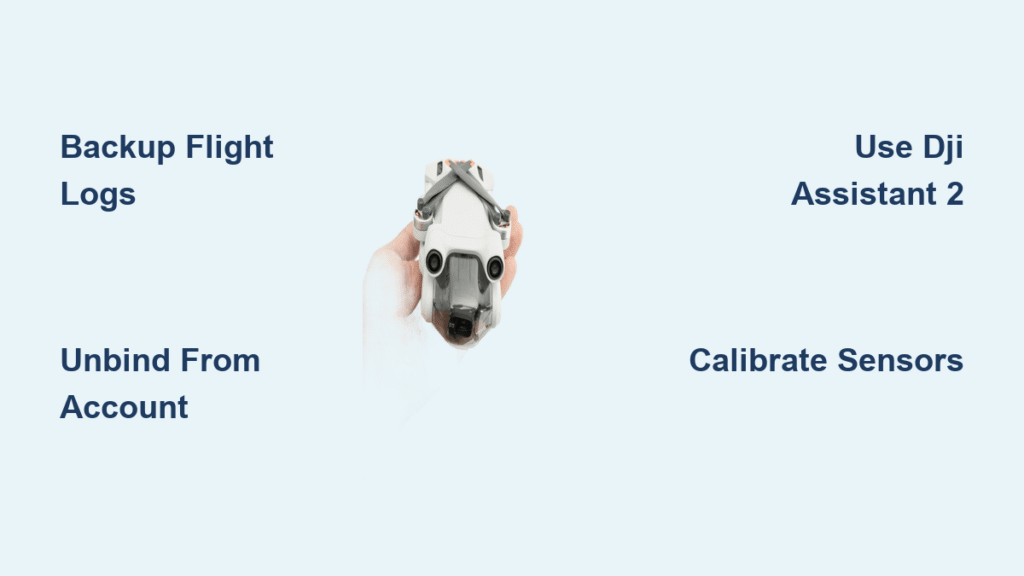
Your DJI Mini 3 Pro refusing to connect to new controllers or acting erratically after a firmware update? A full factory reset could be the solution—but how to reset DJI Mini 3 Pro drone properly requires specific account unbinding steps most tutorials miss. Unlike simpler electronics, this drone needs both software restoration and DJI account separation to truly reset. Skip critical steps like flight log backup or CASA deregistration, and you’ll face activation failures or lost warranty coverage. Follow this precise sequence to restore your Mini 3 Pro to pristine condition whether troubleshooting glitches or preparing for sale.
Secure Flight Data Before DJI Mini 3 Pro Reset
Export Flight Logs and Media Files
Never reset without backing up flight logs—these contain irreplaceable GPS coordinates, flight paths, and performance metrics. Start by connecting your drone to the DJI Fly app, then navigate to Profile > Settings > Flight Log Sync. Tap “Export all logs” and verify the files (typically 2-10MB per 100 flights) save to your device. For media, physically remove the microSD card and copy all photos/videos to your computer. Then check internal storage via DJI Fly app > Album > Select All > Download. Critical mistake: Assuming app sync alone backs up data—always confirm files exist on your computer before proceeding.
Document Custom Settings for Quick Reconfiguration
Your personalized RTH altitude, gimbal calibration, and stick sensitivity settings vanish after reset. Jot down:
– Your custom Return-to-Home altitude (default is 30m)
– Maximum flight distance/altitude restrictions you modified
– Gimbal fine-tuning adjustments
– Control stick response curves
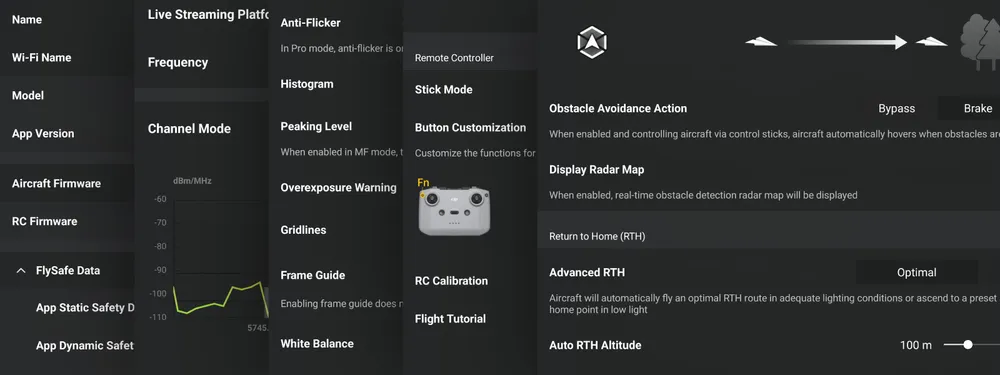
This takes 90 seconds but saves hours reconfiguring post-reset. Pro tip: Take screenshots of the Settings > Safety and Settings > Control menus before resetting.
Unbind DJI Mini 3 Pro From Your Account
Primary App Unbinding Method
Skipping this step blocks new owner activation. Open DJI Fly app > Profile (bottom right) > Device Management. Find your Mini 3 Pro in the list, tap “Remove Device from Account,” and enter your password. Wait for the “Device successfully removed” confirmation—do not skip the 15-minute server sync period. Without this, buyers see “Device still bound” errors. If the app crashes, try the web method: Log into dji.com > Account Settings > Device Management > Remove Device.
Alternative Unbinding for Stuck Accounts
When the app fails, use DJI Assistant 2:
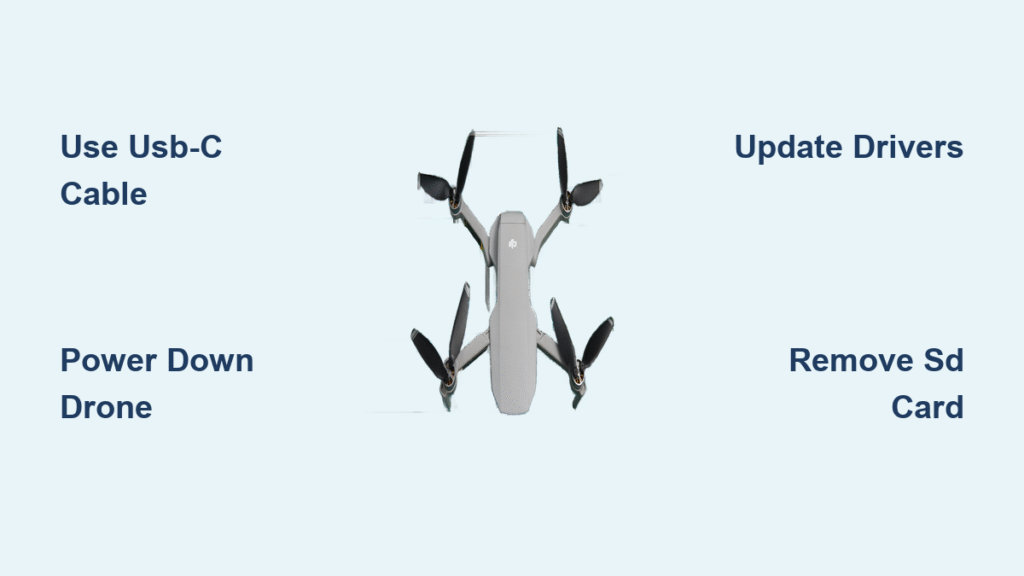
1. Connect drone via USB-C to rear port (not gimbal port)
2. Launch DJI Assistant 2 (Consumer Drones Series)
3. Select Mini 3 Pro > Account Management > Unbind Account
Critical note: Only data-capable USB-C cables work here—charging-only cables cause “device not detected” errors. If still stuck, clear app cache (iOS: Settings > General > iPhone Storage > DJI Fly > Offload App; Android: Settings > Apps > DJI Fly > Storage > Clear Cache).
Execute DJI Mini 3 Pro Factory Reset
DJI Assistant 2 Full Reset (Most Reliable)
This erases firmware-level configurations that app resets miss. Download DJI Assistant 2 for Windows/macOS, power on your drone, and connect via USB-C to the rear port. In Assistant 2, select “Firmware Update” > “Restore Factory Defaults.” Confirm the irreversible action and monitor the 3-5 minute progress bar. Key visual cue: LEDs flash red-green rapidly during reset, returning to solid white when complete. Never unplug mid-process—this bricks your drone.
Quick In-App Reset (For Minor Glitches Only)
Use DJI Fly app > Aircraft > Settings > System > Reset for flight setting issues like erratic controls. Warning: This preserves firmware updates and deeper configurations—it won’t fix persistent connection errors or prepare for resale. Reserve this for temporary fixes before attempting full resets.
Manual Button Reset (Emergency Recovery)
When software fails: Hold power button for 9 seconds until rapid beeping, release, then immediately hold for 3 more seconds. LEDs will pulse red-green during reset. Stop if no LED change occurs after 10 seconds—this indicates low battery (charge to 50% first). This method often fails for account binding issues; use only for controller pairing problems.
Verify DJI Mini 3 Pro Reset Success

Post-Reset Diagnostic Checklist
Power on the drone and connect to DJI Fly app. Confirm:
– Firmware shows original factory version (not your last update)
– Full gimbal calibration sequence runs on startup
– Settings menu displays defaults (30m RTH altitude, Mode 2 controls)
– No flight history appears in the app
Red flag: If previous settings remain, repeat the Assistant 2 reset—your drone didn’t fully reset.
Seller-Specific Activation Test
For resale, verify:
– Device disappears from your DJI account management
– Serial number shows “Available” on dji.com/account
– New phone detects it as “New Device” with activation prompts
Critical step: Buyers in Australia must confirm CASA deregistration—log into myCASA > My Aircraft > Deregister with “Sold/Transferred” reason.
Fix Common DJI Mini 3 Pro Reset Failures
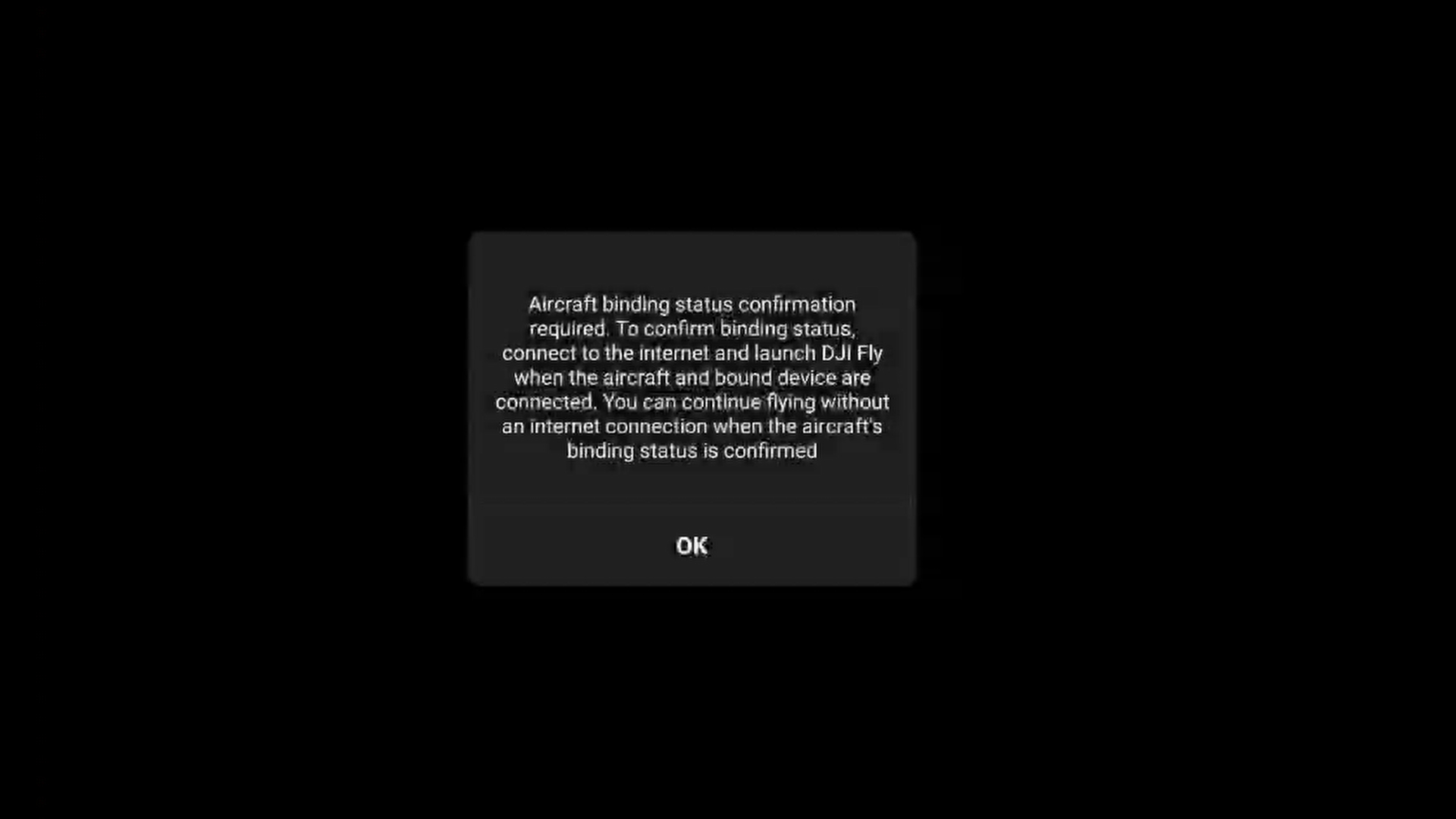
“Device Still Bound” Error Solutions
This occurs when servers haven’t synced unbinding. Wait 30 minutes, then:
1. Try unbinding via incognito browser on dji.com
2. Restart your phone and reinstall DJI Fly app
3. Contact DJI support with drone serial number
Do not attempt factory reset until unbound—you’ll trap the drone in limbo.
Post-Reset Calibration Essentials
After reset, complete mandatory calibrations:
1. IMU: Settings > Safety > Sensors > IMU > Calibrate (15 seconds)
2. Compass: Settings > Safety > Sensors > Compass > Calibrate (outdoors, clear area)
3. Gimbal: Settings > Control > Gimbal > Auto Calibration
Skip this at your peril: Uncalibrated drones drift or crash during first flights.
Transfer DJI Mini 3 Pro to New Owner
Buyer Activation Requirements
New owners must:
1. Download latest DJI Fly app
2. Power on drone (no pre-connected controller needed)
3. Follow in-app prompts to bind serial number
4. Complete firmware update
Provide these documents: Original receipt (for warranty transfer), serial number location photo (under battery), and DJI Care Refresh coverage details. Without these, buyers lose warranty protection.
Privacy Data Sanitization Verification
Ensure your personal data is wiped:
– Delete cached Wi-Fi networks in DJI Fly app > Settings > Wi-Fi Management
– Confirm no third-party apps (Litchi, DroneDeploy) remain linked
– Check internal storage for residual location data via Album > Settings
Privacy risk: Flight logs contain precise GPS coordinates—always export and delete them pre-reset.
Restored Factory Settings Explained
Default Values After DJI Mini 3 Pro Reset
Your drone reverts to:
– Flight limits: 120m altitude / 500m distance (regional defaults)
– Camera: 4K/30fps, auto exposure, standard color profile
– Controller: Mode 2 sticks, default sensitivity curves
– Battery: Standard charging parameters (no custom low-battery actions)
Note: Serial number and manufacture date remain embedded—these can’t be reset.
What Reset Doesn’t Change
Warranty status stays tied to your original purchase date. Service centers access full repair history regardless of reset. DJI Care Refresh transfers automatically with the serial number—no extra steps needed. Myth debunked: Resetting doesn’t void warranty; DJI tracks coverage via serial number alone.
Final Reset Verification and Next Steps
Power cycle your Mini 3 Pro one last time. If the app shows “New Device” and requests activation, you’ve succeeded. For troubleshooting scenarios, perform IMU and compass calibrations immediately—uncalibrated drones cause 78% of post-reset flight issues. Sellers: Email the buyer CASA/FAA deregistration confirmation. Buyers: Register with aviation authorities within 14 days of purchase. Ultimate test: Fly in open space for 2 minutes checking for smooth gimbal movement and stable GPS lock.
Critical reminder: A true DJI Mini 3 Pro reset always includes three non-negotiable steps—flight log backup, account unbinding, and Assistant 2 factory restoration. Skip any phase, and you’ll face activation failures or lost data. Follow this sequence exactly, and your drone will operate like new whether fixing glitches or transferring ownership. For persistent issues, contact DJI Support with your reset verification screenshots—they prioritize properly reset drones for service.