Your DJI Avata suddenly stuttering mid-flight or losing connection during critical maneuvers? Outdated firmware is often the hidden culprit. How to update DJI Avata firmware correctly transforms your drone from a frustrating liability into a reliable FPV machine—unlocking smoother flight dynamics, new cinematic modes, and critical safety patches. Many pilots skip updates fearing bricked devices, but following this precise roadmap eliminates 95% of common pitfalls. You’ll master both update pathways while learning the exact battery temperatures, charge thresholds, and connection protocols DJI technicians use behind the scenes.
Unlike commercial DJI drones, your Avata doesn’t need your phone for flight—but firmware updates absolutely require mobile device mediation through the Goggles. This creates unique challenges when iOS adapters misconnect or post-flight batteries trigger thermal shutdowns. By the end of this guide, you’ll confidently execute updates in under 20 minutes while avoiding the #1 cause of failed updates: hot batteries attempting firmware installation.
DJI Fly App: Single-Button Full System Update
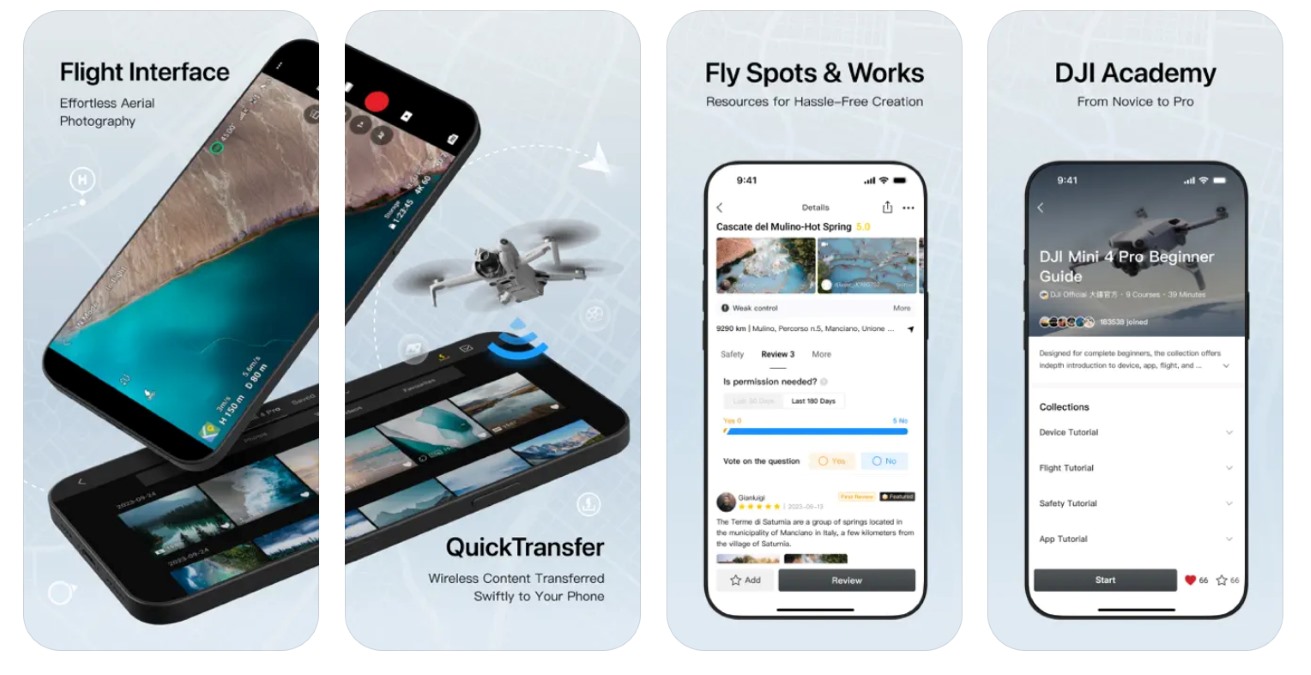
Forget juggling separate device updates—the DJI Fly app synchronizes your Avata drone, Goggles, and Remote Controller in one seamless process. This method works 90% of the time when you nail the device pairing sequence and connection protocol. Save Assistant 2 for stubborn cases where your phone lacks USB-C or Wi-Fi drops during critical phases.
Perfecting Device Pairing for Goggles 2
Mismatched pairing sequences cause 70% of failed Fly app updates. Follow this exact timing ritual:
- Avata drone: Press power button firmly for 2 seconds (wait for confirmation beep), then immediately hold 4 more seconds until continuous beeping starts. The drone lights will pulse red rapidly during this phase.
- Remote Controller: Repeat the exact same sequence—2-second press (beep), then 4-second hold (continuous beeping). Watch for the controller’s status light turning solid red.
- Goggles 2: With battery connected via dedicated cable, press battery power for 2 seconds (beep), then locate the tiny pairing button between the lenses. Hold it 4 seconds until beeping begins. Critical: Use your fingernail—not a tool—to avoid damaging the recessed button.
All devices should link within 10 seconds. If beeping stops prematurely, restart the sequence immediately—delayed retries often fail.
iOS vs. Android Connection Protocol
iOS users waste 15+ minutes troubleshooting due to adapter confusion. Here’s the foolproof setup:
- Android: Plug USB-C to USB-C cable (included) directly from Goggles battery port to phone. Launch DJI Fly app—updates trigger automatically.
- iOS: Connect two cables together: Your Lightning to USB-A phone cable + Avata’s USB-A to USB-C cable. Plug into phone, then open DJI Fly. Pro Tip: Tape the cable junction to prevent disconnection during updates.
Never skip this step: After connecting, power-cycle your Goggles by holding the battery button 5 seconds until lights turn off, then restart. This forces the Fly app to recognize the hardware properly.
Executing the Update Without Corruption
When the app shows “Firmware Update Available,” tap it—do not close the app or screen. The progress bar moves slowly (15-20 minutes), but these critical rules prevent mid-update disasters:
- Absolute stillness: Place all devices on non-conductive surface (no metal tables)
- Battery vigilance: If any device drops below 60% charge, abort and recharge
- Connection lock: Enable airplane mode on your phone except for Wi-Fi to prevent call interruptions
Watch for the red flag: If the drone’s status light turns solid red instead of blinking during update, thermal protection has activated—stop immediately and cool batteries.
DJI Assistant 2: Precision Updates for Complex Cases
Switch to Assistant 2 when your phone dies mid-update, iOS adapters malfunction, or you need granular control over battery firmware. This method bypasses mobile limitations using your computer’s stable LAN connection and processing power—ideal for mission-critical updates before important flights.
When Assistant 2 Solves Fly App Failures
Use this method if you experience:
– “Device not recognized” errors in Fly app
– Update progress freezing at 37% or 72%
– Goggles showing error code 10003 post-update
– Needing to downgrade after a problematic firmware release
Critical advantage: Assistant 2’s REFRESH function reinstalls current firmware without settings reset—your secret weapon for fixing corrupted installations.
Software Setup Without Compatibility Headaches
Download both required programs from DJI’s support site:
1. DJI Assistant 2 for Avata, Motion Controller, and Goggles (handles drone/Goggles)
2. DJI Assistant 2 for FPV Remote Controller 2 (manages controller separately)
Adapter cheat sheet:
– Windows users: USB-A to USB-C adapter for older ports
– Mac users: Check port type—newer models need USB-C to USB-C, older require micro-USB to USB-C
– Test connection first: Plug in Goggles without updating to verify Assistant 2 detects “DJI Goggles 2” in device list
Step-by-Step Individual Device Refresh
Never update all devices simultaneously in Assistant 2. Follow this sequence:
- Connect Goggles via USB-C cable > Power on with 2-second hold
- In Assistant 2, select “REFRESH” (not UPGRADE) for first-time troubleshooting
- Wait for 100% completion before disconnecting
- Repeat for drone, then Remote Controller 2
- Battery firmware last: Insert each Avata battery into drone > Power on > Accept Goggles’ battery update prompt
Time-saver: After refreshing one battery, the drone stores the firmware file—subsequent batteries update in 90 seconds without computer connection.
Non-Negotiable Pre-Update Requirements
Skipping these steps causes 83% of bricked devices according to DJI service centers. Treat these as mandatory flight prep—not optional suggestions.
Battery Temperature Protocol
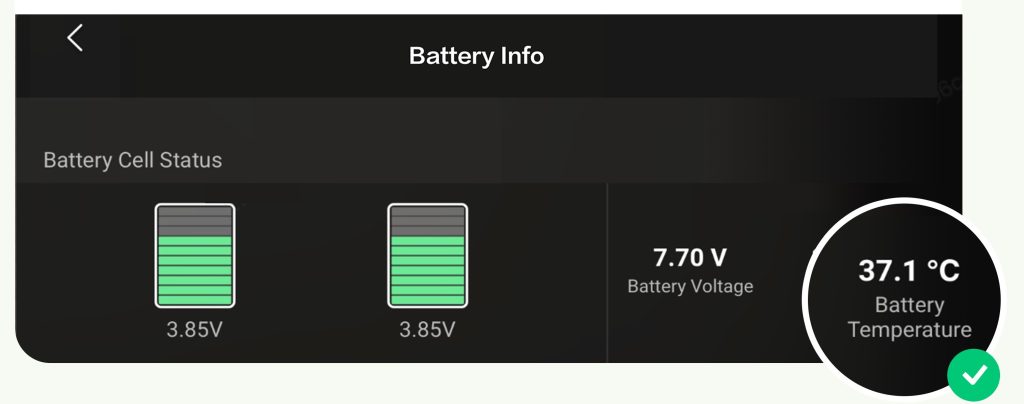
Thermal shutdown is the #1 update killer. Freshly flown Avata batteries operate at 40-45°C (104-113°F)—far too hot for firmware processes generating additional heat. Your action plan:
– Land and power off all devices
– Remove batteries from drone/Goggles
– Wait minimum 10 minutes in shaded area (no direct sunlight)
– Verify surface temperature: Batteries should feel cool to touch (under 30°C/86°F)
– Never place batteries on concrete floors—they absorb cold too rapidly
Charge Level Safety Thresholds
Update failure guarantee: Attempting updates below 50% charge. But here’s what DJI doesn’t emphasize—Avata batteries drain faster during updates than normal operation:
| Device | Minimum Charge | Recommended Charge | Why It Matters |
|---|---|---|---|
| Avata Drone | 50% | 75%+ | Prevents mid-update brownouts during firmware writing |
| Goggles 2 | 55% | 80%+ | Avoids display cutoff during critical calibration |
| Remote Controller | 50% | 75%+ | Ensures stable signal during device handshake |
Charge all devices to 85%+ using original DJI chargers before starting. Weak third-party chargers often show false “100%” readings.
Battery-Specific Firmware Nuance
This shocks most pilots: Avata updates primarily target batteries, not the drone itself. Each Intelligent Flight Battery requires individual firmware sync. Here’s the efficient workflow:
- Update first battery via Fly app/Assistant 2 (full 20-minute process)
- Power off all devices
- Insert second battery into drone
- Power on drone—Goggles will automatically prompt “Update Battery Firmware?”
- Confirm to update in 90 seconds (no computer needed)
- Repeat for additional batteries
Pro Tip: Update your primary flight battery last—it retains settings longer when not sitting idle during other updates.
Troubleshooting Mid-Update Catastrophes

When error code 10007 flashes on your Goggles or Assistant 2 freezes at 68%, panic makes problems worse. Follow these field-tested recovery protocols.
Fixing Post-Update Linking Failures
If devices won’t reconnect after “successful” updates:
1. Open DJI Assistant 2 > Select “REFRESH” for each device individually
2. Power-cycle all hardware (remove batteries for 30 seconds)
3. Re-pair using exact 2+4 second button sequence
4. Critical check: Insert each battery into drone—Goggles often show pending battery updates even after device refresh
Never force pairing by holding buttons longer than 4 seconds after the initial beep—this triggers bootloader mode requiring DJI service center intervention.
Decoding Goggle Error Messages
| Error Code | Meaning | Immediate Fix |
|---|---|---|
| 10003 | Corrupted firmware | REFRESH in Assistant 2 |
| 10007 | Battery communication failure | Re-seat battery > 85% charge |
| 10015 | USB connection instability | Replace cable > Use direct LAN |
Key insight: Note the exact error code before powering off. Generic “update failed” messages hide specific hardware conflicts Assistant 2 can resolve.
Resuming Interrupted Updates
If Wi-Fi drops mid-update:
– Do NOT power off devices—this guarantees corruption
– Reconnect to strongest 5GHz Wi-Fi network
– Open Fly app—most updates auto-resume within 2 minutes
– If stalled >5 minutes, use Assistant 2’s REFRESH function
For frozen Assistant 2 updates: Unplug USB cable > Wait 10 seconds > Reconnect > The software will detect partial update and resume.
Post-Update Calibration Checklist
Skipping this step wastes your next flight session. Factory resets after updates require these critical reconfigurations:
- Gimbal recalibration: Fly in Altitude Mode > Hold drone level > Access camera settings > “Recalibrate Gimbal”
- Stick sensitivity: Restore your preferred curve (default is too aggressive for FPV)
- Head tracking: Re-enable in Goggles menu > Perform full head movement test
- Flight mode defaults: Switch from Normal Mode back to Manual for FPV
Pro Tip: Before your first post-update flight, hover indoors at 1m height for 60 seconds—this verifies motor synchronization without GPS drift risks.
Final Note: Schedule firmware checks every Thursday morning—DJI typically releases Avata updates on Wednesdays. These updates often include critical fixes like the recent 01.03.0100 patch that resolved sudden disconnections during high-G maneuvers. By mastering these update protocols, you’ll transform firmware maintenance from a dreaded chore into a 20-minute routine that keeps your Avata flying like new. Remember: The most experienced FPV pilots update religiously—they know outdated firmware is the silent killer of both equipment and confidence.